


-
Must be 16 years or over to register for Medibank Live Better rewards. Some program partners and earning activities require a person to be at least 18 years of age to be eligible to earn and/or redeem a reward. Must be a Medibank member with hospital cover, extras cover, or hospital and extras cover, be up-to-date with premium payments and have signed up to Medibank Live Better rewards in the My Medibank app to earn Live Better points for eligible purchases and redeem rewards. Excludes Overseas Student Health Cover (OSHC), Ambulance only cover, ahm covers and other selected covers. Live Better Management Pty Ltd, ACN 003 457 289 has entered into commercial arrangements with Medibank Live Better program partners and may receive commissions. Additional terms and conditions may apply to points earning activities and rewards. Points earning activities and rewards are subject to change and may be subject to availability. Wherever possible, we will give you notice of these changes. See full Medibank Live Better rewards terms.
More help and support

Live Better rewards help and support
How-to guides, helpful forms and frequently asked questions to help you make the most of Live Better rewards.
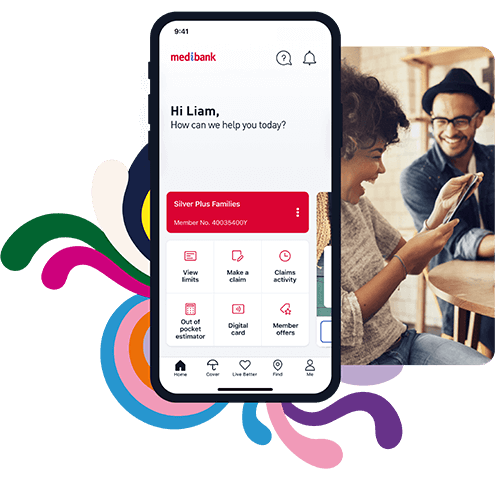
My Medibank app
Your My Medibank app makes it easy to check your cover details, keep on top of your extras limits, find a provider and more. Download the My Medibank app today.*
Things you should know:
Note: Offers can change or be withdrawn at any time in accordance with the Live Better T&Cs (see https://www.medibank.com.au/livebetter/rewards/terms/) and some offers have expiry dates.
Use your linked card at any eligible Live Better rewards partner to earn Medibank Live Better points. Offer cannot be used in conjunction with any other third-party offer. To earn Medibank Live Better points, payment must be made directly to the partner via your linked card at the time of purchase (including if you pay by Apple Pay or Google Pay with your linked card). You cannot earn Medibank Live Better points on a purchase (1) if you pay via a third-party payment provider such as PayPal and Afterpay or (2) if you cancel or refund your purchase or (3) for any amount paid for by a gift card or reduced with a promotional discount. You will only earn points on the amount charged to your linked card. You will receive your points within 60 days of the date of the eligible purchase.
Apple, the Apple logo and Apple Pay are trademarks of Apple Inc., registered in the U.S. and other countries and regions. App Store is a service mark of Apple Inc. Google Pay, Google Play and the Google Play logo are trademarks of Google LLC.
* Maximum 1,000 points per member per calendar year for Healthy Living Extras. Maximum 2,000 points per member per calendar year for all other extras. Award of Live Better rewards points is subject to the approval of a claim for the health service. Waiting periods may apply. Not available in all areas. Points will be credited to a members' account only when the member registers as a Live Better rewards member within 6 months from the date of the receiving the health service, subject to the Medibank Live Better rewards terms. Must be a Medibank member with extras cover (excludes ambulance only cover), hospital cover or hospital and extras cover, be up-to-date with premium payments and have signed up to Medibank Live Better with the My Medibank app to redeem rewards. See full Medibank Live Better terms.
~ Points cannot be earned on the cost of any services (including eye tests), on purchases paid for with a Specsavers gift card or on non-prescription goods such as non-prescription sunglasses, safety glasses, protective glasses or precision tinted lenses. All optical items offered are subject to availability and are subject to Specsavers Terms of Service and Returns & Warranty policies. For in-store purchases, you must use your Medibank membership card through HICAPS at the time of purchase to earn Live Better rewards points. This applies even if you have hospital only cover or have already reached your annual optical extras limit. If you have extras cover and any annual optical extras limit remaining, you will also be submitting a claim for benefits. For online purchases at https://www.specsavers.com.au/, you must submit an extras claim for prescription optical goods to earn Live Better rewards points. Members with hospital only cover, or Healthy Living Extras cover cannot earn points for online purchases. Points earned will be displayed in your Live Better rewards account within 5 business days, or once you have signed up to Medibank Live Better rewards with the My Medibank app within 6 months, from the date of your in-store purchase or making an extras claim for online purchases. A maximum of 10,000 Live Better rewards points can be earned per transaction. This offer may be withdrawn or changed at any time. Live Better rewards points earned from claims for children under 18 years of age will go to the policy holder’s account. A maximum of 10,000 Live Better rewards points can be earned per transaction. This offer may be withdrawn or changed at any time.
^ Members are only eligible to earn points for this challenge once in a 12 month period (based on completion date) - points can only be earned the first time you join the challenge (in a 12 month period) and complete a minimum 50% of activities. If you join a challenge and do not meet the minimum threshold to be awarded points, you will not be awarded points the second time joining the same challenge in the 12 month period. If you opt to leave the challenge, you will not be eligible to earn points even if you have reached the minimum threshold of 50%.
# Must be 16 years or over to register for Medibank Live Better rewards in the My Medibank app. Some program partners and earning activities require a person to be at least 18 years of age to be eligible to earn and/or redeem a reward. Must be a Medibank member with hospital cover, extras cover, or hospital and extras cover, and be up-to-date with premium payments and have signed up to Medibank Live Better rewards in the My Medibank app to earn Live Better points for eligible purchases and redeem rewards. Excludes Overseas Student Health Cover (OSHC), Ambulance only cover, ahm covers and other selected covers. Live Better Management Pty Ltd, ACN 003 457 289 has entered commercial arrangements with Medibank Live Better program partners and may receive commissions. Additional terms and conditions may apply to points earning activities and rewards. Points earning activities and rewards are subject to change and may be subject to availability. Wherever possible, we will give you notice of these changes. See full Medibank Live Better rewards terms.
The number of Live Better rewards points available for Medibank Live Better Challenges and Goals is subject to change without prior notice. The maximum number of Live Better rewards points that each Medibank Live Better member can earn from successfully completing health and wellbeing Challenges, Goals or any Onboarding action in a calendar year is 40,000 Live Better rewards points. To the extent of any inconsistency between this Policy and the Medibank Live Better terms and conditions, the terms and conditions will take precedence.